The real Site Sync workflow

From site setup
to snag sign-off.

Site Sync gives construction managers a structured way to register the right people, create a site, track progress by house, record snags with photo evidence, and put clear instructions in front of the contractor who needs to act.

Open Site Sync

Built for active projects

A connected workflow
for every house.

On a busy construction site, the question is rarely whether there is work to do. The challenge is knowing exactly what is outstanding, who owns it, and whether the evidence is available when it matters. Site Sync turns that moving picture into a usable operating record.

Each stage is connected to a practical next action: create the site, inspect the right unit, describe the issue, assign the responsible contractor, then confirm completion. Managers can use the same workflow across new developments, maintenance work, or final snag handovers.

The process below mirrors the actual screens used in the app. It starts with a dependable contact registry and ends with a completed snag report delivered to the assigned contractor or company.

01

Start with the right people

Register contractors and companies.

The Contact Registry gives managers one place to add contractors, companies, and their contact details. Instead of searching old messages or waiting for the office to confirm a number, authorised users can quickly find the people who belong on the project.

Complete the required contact fields and select Authorize Entry to save the record. Once registered, the contact stays available for management to use when a snag needs to be assigned or a report needs to be sent.
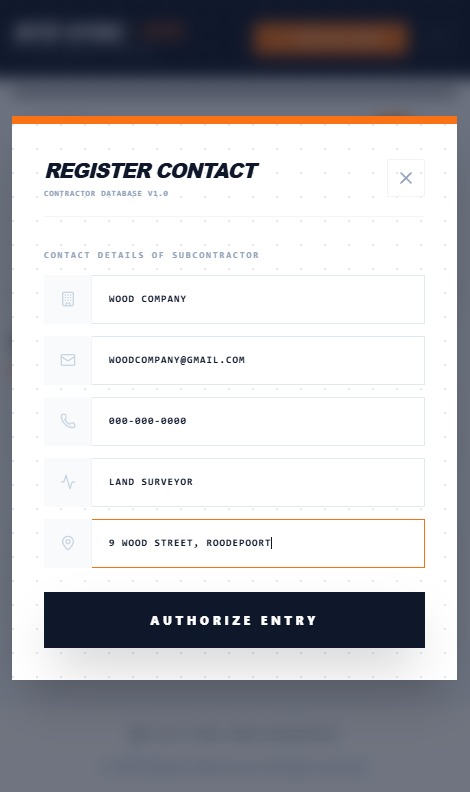
Site Sync register contact screen for adding contractor or company details
Contact Registry: create a reliable contractor and company directory.
02

Build the operating site

Create a site and define its houses.

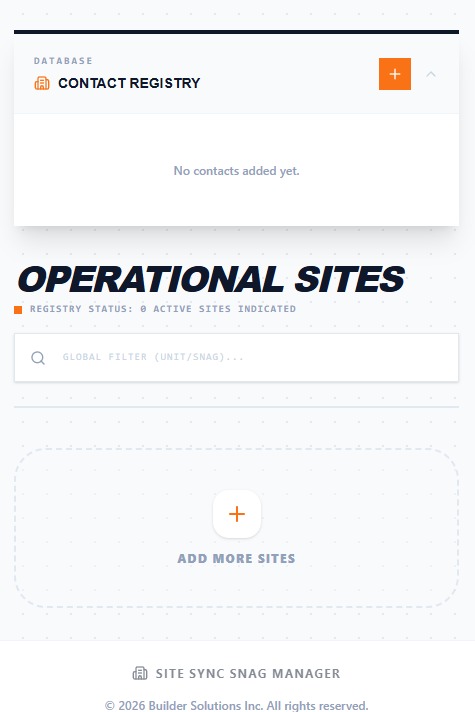
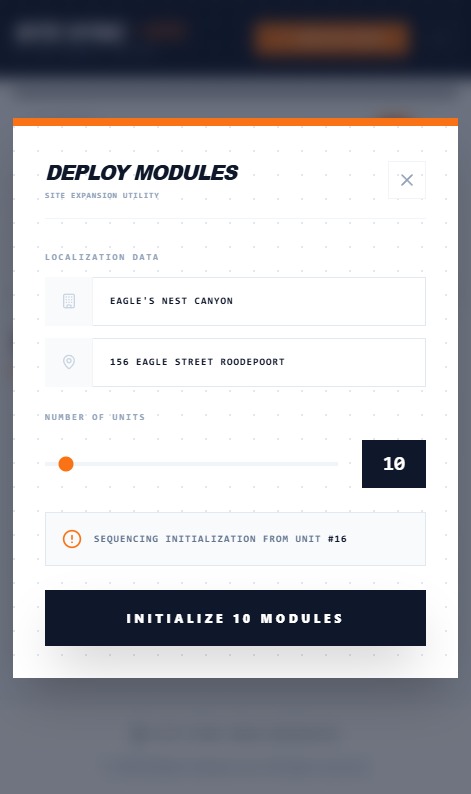
From the main page, select Add More Sites and enter the number of sites and houses that need to be managed. The deployment form asks for the essential site information before modules are initialised.

This gives Site Sync the structure it needs to report progress at the right level. Rather than treating a whole development as one vague job, managers can see the individual houses or units that make up the site and work from an accurate starting point.

Site Sync deploy modules screen for creating a new construction site
Deploy Modules: configure the site and number of houses before work begins.
03

Keep the site current

Open the site and monitor the snag summary.

When work begins, the site becomes an operational site in Site Sync. Management can open it while the project is active and close it when the work is complete, keeping the app aligned with the current state of the job.

The Snag Summary shows the total number of snags, the outstanding items, and the completed items. That instant view makes it easier to see whether a site is moving forward or whether a backlog needs attention before the next inspection.

Site Sync operational sites dashboard showing construction site status
Operational Sites: keep an active record of the projects currently in progress.
04

See progress by unit

Review performance house by house.

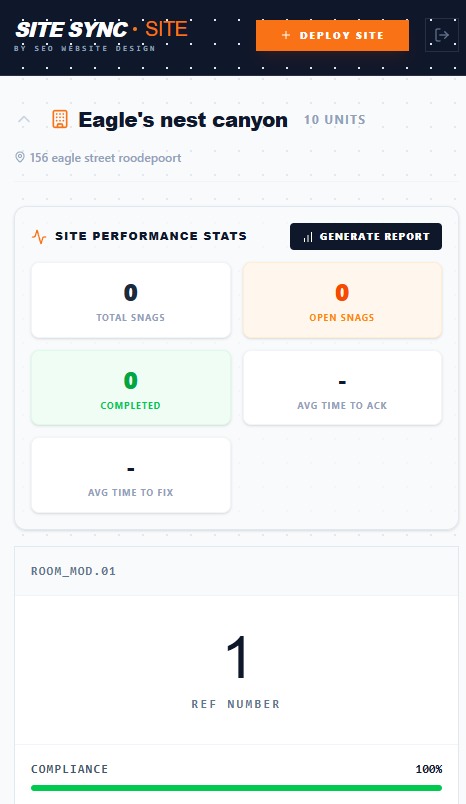
Site Performance Statistics displays the completion status of every house or unit on a site, from 0% to 100%. This gives project managers a faster way to see where work is complete, where snags are outstanding, and which houses need a follow-up.

Instead of relying on a broad site-level update, teams can look at the detail that drives practical decisions. The screen makes slow-moving units visible so the supervisor can focus the next conversation or inspection where it will have the most impact.

Site Sync site performance statistics showing house completion progress
Site Performance: compare completion progress across every house or unit.
05

Make a snag actionable

Record the issue, evidence, and assignment.

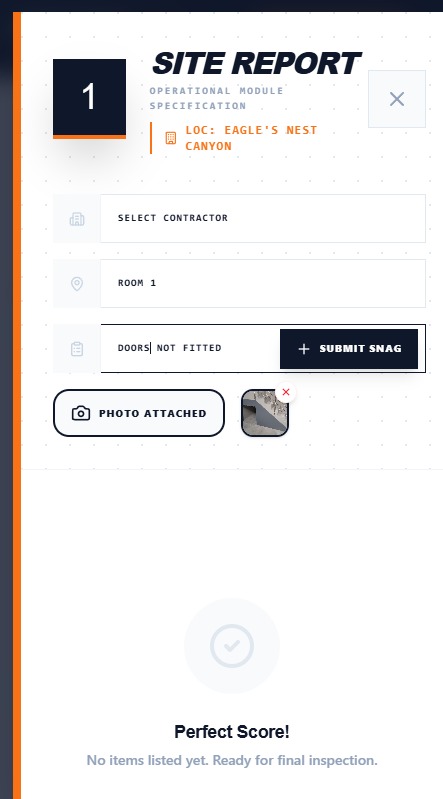
Select a house or unit to open its Site Report. Choose the contractor or company responsible for the work, identify the room or area, and add a clear description of the snag. A photo can be attached to show the issue exactly as it appears on site.

That combination gives the contractor a useful instruction, not a vague request. The reported issue is connected to a specific house, area, description, and visual reference, reducing the back-and-forth that often delays remedial work.

Site Sync site report form for assigning a snag with a photo
Site Report: assign a contractor, describe the snag, and attach photo evidence.
06

Close the loop

Confirm completion and send the report.

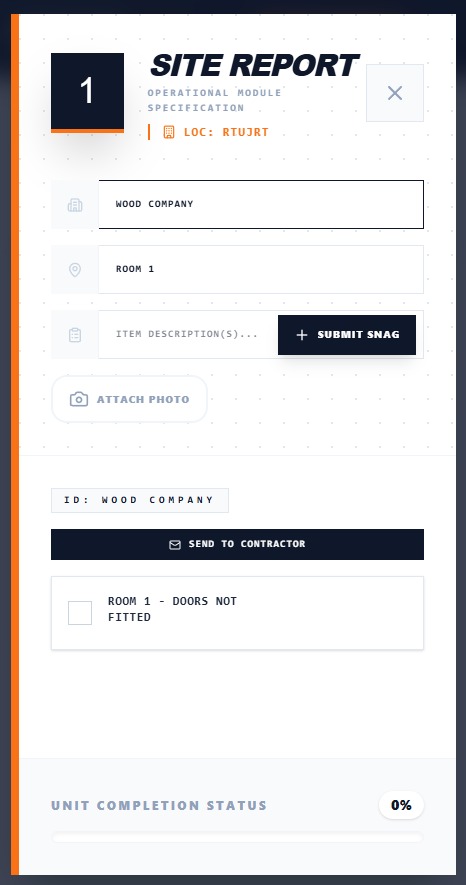
When a snag is completed, select its completion checkbox. Site Sync records the completion date and changes the status to green, giving the team a clear visual record that the item has been closed.

When the report is ready, select Send to Contractor to send the assigned contractor or company the complete snag report. The handover is clear, traceable, and connected to the work that still needs to happen.

Site Sync screen for sending a completed snag report to a contractor
Send to Contractor: deliver a complete, actionable snag report without delay.

Ready for a clearer site record?

Put every snag,
house, and contractor in sync.

Launch web app Talk to the Site Sync team →